How to ZIP a Folder on Mac
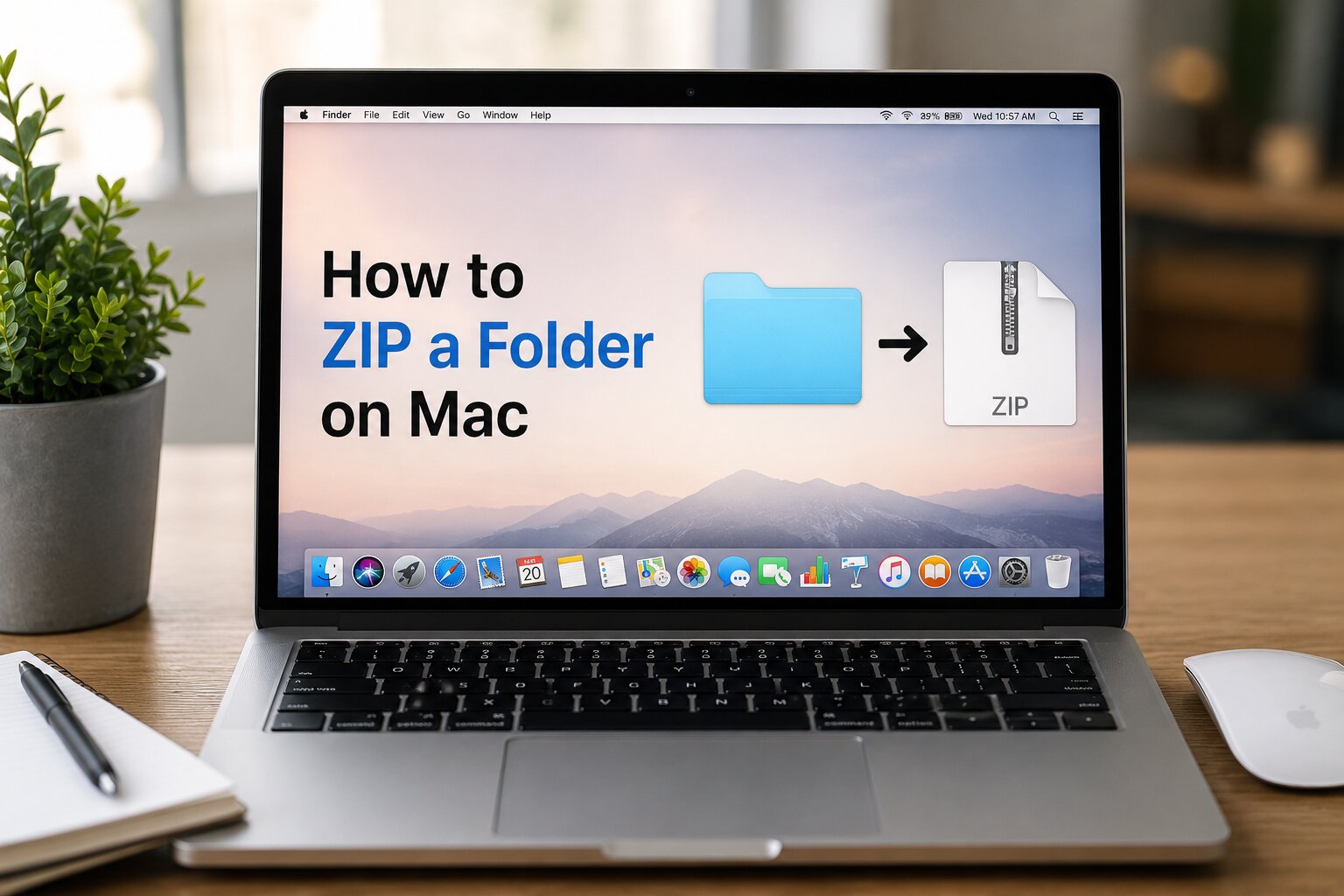
If you're using a Mac and want to share multiple files or save storage space, creating a ZIP folder is one of the easiest solutions. macOS includes a built-in compression feature, so you don't need to install any extra software. With just a few clicks, you can compress a folder into a ZIP file that is easy to store, upload, or send to others.
In this guide, you'll learn how to ZIP a folder on Mac, why ZIP files are useful, and some helpful tips to make the process even easier.
What Is a ZIP File?
A ZIP file is a compressed archive that combines one or more files and folders into a single file. It helps reduce the overall file size while keeping the original folder structure and file names intact.
ZIP files are widely supported across Windows, macOS, Linux, Android, and iPhone, making them one of the most convenient formats for sharing and storing files.
Why ZIP a Folder on Mac?
Compressing a folder into a ZIP file offers several benefits. Whether you're sending files to a friend, uploading documents online, or creating backups, ZIP files make file management much simpler.
- Reduce the overall file size.
- Share multiple files as a single attachment.
- Keep folders organized.
- Create backups of important data.
- Upload files faster to cloud storage.
- Preserve the original folder structure.
How to ZIP a Folder on Mac
macOS makes folder compression quick and easy with its built-in compression tool. You don't need to download any third-party applications.
Locate the Folder
Open Finder and navigate to the folder you want to compress.
Open the Context Menu
Right-click the folder, or hold the Control key while clicking it to open the context menu.
Choose the Compress Option
Select Compress "Folder Name" from the menu. macOS will immediately begin creating a ZIP archive.
Wait for the Compression to Finish
The time required depends on the size of the folder. Small folders usually compress within a few seconds, while larger folders may take a little longer.
Find Your ZIP File
Once the process is complete, the ZIP file will appear in the same location as the original folder. You can now move it, upload it, email it, or store it as a backup.
Can You ZIP Multiple Files at Once?
Yes. You can select multiple files or folders in Finder, right-click the selection, and choose the Compress option. macOS will combine everything into a single ZIP archive, making it easier to share several items together.
What Happens to the Original Folder?
Creating a ZIP file does not delete or change your original folder. The compressed ZIP archive is simply a copy that contains the same files in a compressed format. Your original folder remains exactly as it was before compression.
Benefits of Using the Built-in macOS Compression Tool
- No software installation required.
- Fast and easy to use.
- Integrated directly into Finder.
- Works with files and folders.
- Creates standard ZIP archives that are compatible with most devices.
- Maintains the original folder structure.
Common Reasons to ZIP a Folder
People use ZIP files for many different purposes. Some of the most common include:
- Sending documents by email.
- Sharing project folders with coworkers.
- Uploading assignments.
- Creating backups of important files.
- Saving storage space.
- Organizing large collections of files.
Tips for Better ZIP Management
- Give your folders meaningful names before compressing them.
- Delete unnecessary temporary files before creating the ZIP archive.
- Keep similar files together inside one folder.
- Store important ZIP files in cloud storage or external drives.
- Use password protection if you're sharing sensitive information with third-party compression software.
Common Problems and Solutions
The ZIP File Is Too Large
If your ZIP file is still large, it's likely because it contains images, videos, or already compressed files. These file types usually don't compress much further.
I Can't Find the ZIP File
By default, macOS saves the ZIP archive in the same folder as the original. Check the folder where the original files are stored.
The ZIP File Won't Open
If the ZIP archive doesn't open, it may have been damaged during transfer or download. Try creating the ZIP file again or download it again if you received it from someone else.
Frequently Asked Questions About ZIP Files on Mac
Most Mac users can create ZIP files without installing additional software because macOS already includes everything needed. The built-in compression feature is reliable, fast, and suitable for everyday file management.
Final Thoughts
Creating a ZIP folder on Mac is a simple and effective way to organize, compress, and share your files. Since macOS includes a built-in compression feature, you can create ZIP archives in just a few clicks without downloading extra software.
Whether you're sending documents, sharing photos, creating backups, or organizing projects, ZIP files help keep everything together in a convenient and widely supported format. Once you know how the process works, compressing folders becomes a quick task that can save both time and storage space.
No comments yet. Be the first to share your thoughts!