How to Extract Files from a ZIP Folder
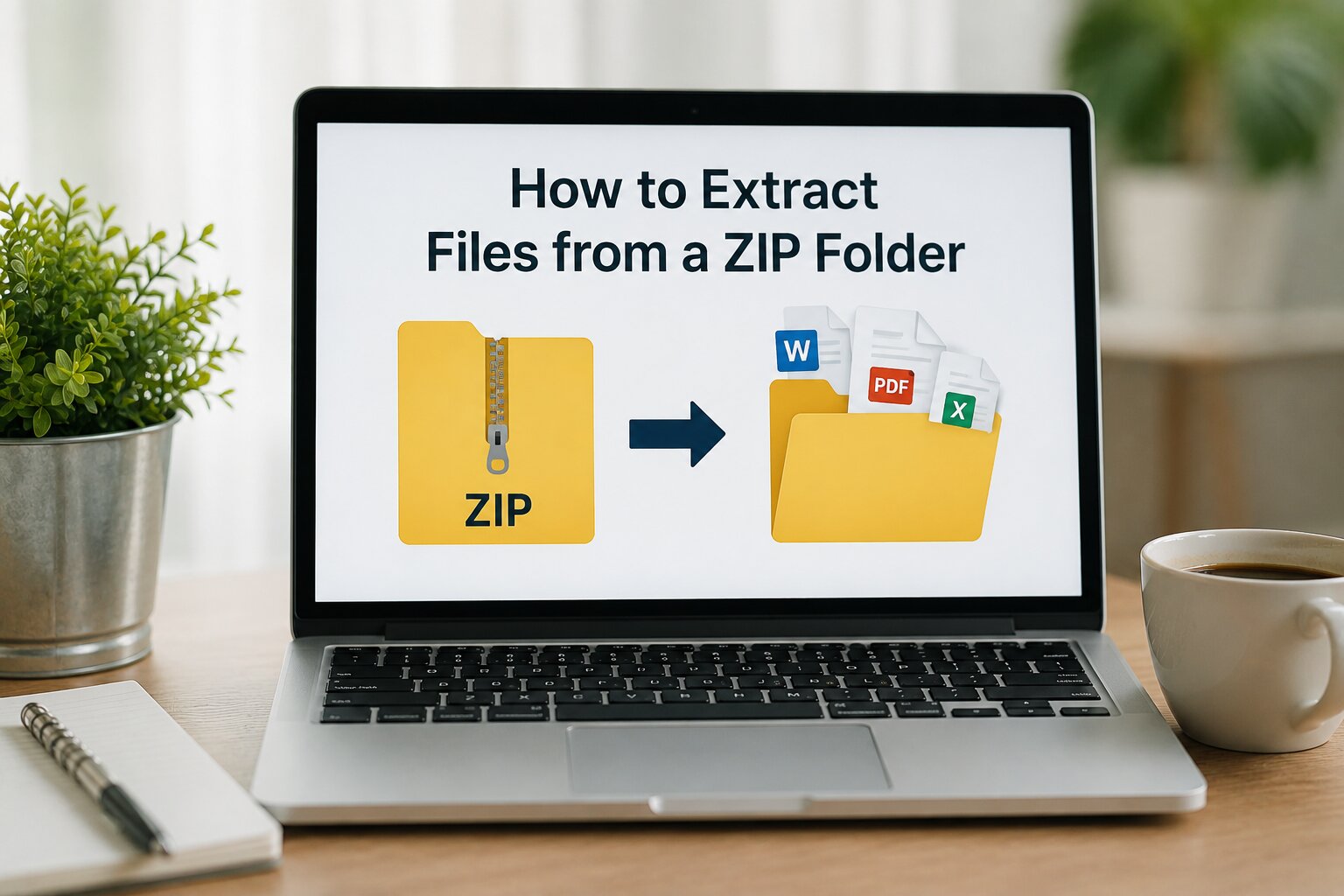
ZIP files are one of the most popular ways to store and share multiple files in a single archive. However, before you can use the files inside a ZIP archive, you need to extract them. Extracting a ZIP folder simply means unpacking the compressed files so they can be accessed and used normally.
Whether you've downloaded a ZIP file from the internet, received one through email, or created it yourself, extracting the contents is a quick and simple process. This guide explains how to extract files from a ZIP folder on different devices using easy-to-follow instructions.
What Does It Mean to Extract a ZIP Folder?
When files are compressed into a ZIP archive, they are stored inside a single file to save space and make sharing easier. Extracting the ZIP folder restores those files and folders to their original format so you can open, edit, or move them just like any other files on your device.
During extraction, the original folder structure and file names are preserved, ensuring that everything remains organized exactly as it was before compression.
Why Do You Need to Extract ZIP Files?
Most files inside a ZIP archive cannot be used directly. They must first be extracted before you can view documents, edit files, install software, or access images and videos.
- Open documents and spreadsheets.
- Access photos and videos.
- Install software packages.
- Restore backup files.
- Organize project folders.
- Edit files normally.
How to Extract Files from a ZIP Folder
Extracting files is very simple and usually takes only a few seconds.
Locate the ZIP File
Find the ZIP file on your computer or mobile device. It may be located in your Downloads folder, Desktop, Documents folder, or another location where it was saved.
Choose the Extract Option
Most operating systems provide a built-in option to extract ZIP files. Right-click the ZIP file (or tap and hold on mobile devices) and choose an option such as Extract All, Extract Here, or Unzip.
Select a Destination Folder
Choose where you want the extracted files to be saved. You can keep the default location or select another folder that's easier to access.
Access Your Files
Once the extraction process finishes, open the destination folder to view and use all of the extracted files.
Extracting ZIP Files on Windows
Windows includes built-in support for ZIP files, so you don't need to install additional software. Simply right-click the ZIP file, choose Extract All, select a destination folder, and click Extract.
Extracting ZIP Files on macOS
Mac users can simply double-click a ZIP file. The Archive Utility automatically extracts the contents into a new folder located in the same directory.
Extracting ZIP Files on Android and iPhone
Modern Android and iPhone devices also support ZIP extraction. Open the ZIP file using the built-in Files app or another compatible file manager, then choose the extract option to access the files.
Common Problems When Extracting ZIP Files
Sometimes you may experience issues while opening ZIP archives. The most common causes include:
- The ZIP file is corrupted.
- The download was incomplete.
- The archive is password protected.
- There isn't enough storage space.
- The ZIP file is damaged.
If extraction fails, try downloading the file again or verify that you have the correct password if the archive is encrypted.
Tips for Extracting ZIP Files Safely
- Only download ZIP files from trusted sources.
- Scan downloaded archives with antivirus software.
- Extract files into an organized folder.
- Keep enough free storage space available.
- Delete unnecessary ZIP files after extraction if you no longer need them.
Benefits of ZIP Extraction
- Quick access to compressed files.
- Maintains the original folder structure.
- Works on almost every operating system.
- Simple process for beginners.
- Supports documents, images, videos, and many other file types.
Final Thoughts
Extracting files from a ZIP folder is an essential skill for anyone who regularly downloads or shares compressed files. Whether you're using Windows, macOS, Android, or iPhone, the process is simple and only takes a few moments.
By understanding how ZIP extraction works and following safe file management practices, you can easily access your files while keeping them organized and secure.
No comments yet. Be the first to share your thoughts!